顯示具有 iPhone 標籤的文章。 顯示所有文章

2013年9月22日 星期日

iPhone 5s 炒機流程:日日六點 iReserve (21日起)

  1. 打開 https://ireservea.apple.com/HK/zh_HK/reserve/iPhone
  2. 用手機向 64500366 傳送訊息 “iPhone”
  3. 於「iReserve」網頁輸入回覆的預訂代碼
  4. 選擇 iPhone 版本、取貨地點、時間
  5. 按時取貨
注意事項

    英文版本網址
    https://ireservea.apple.com/HK/en_HK/reserve/iPhone
    https://ireservea.apple.com/HK/en_HK/reserve/iPhone/checkAvailability

    中國applestore
    https://ireservea.apple.com/CN/zh_CN/reserve/iPhone
    https://ireservea.apple.com/CN/zh_CN/reserve/iPhone/checkAvailability


    2013年9月20日 星期五

    炒iPhone 5s情報

    大家好,昨日零晨時分,iPhone 5s正式開賣,大家有無大量入貨呢?


    本人已購入數部作賺取零用錢之用。XD

    2013年9月19日 星期四

    iOS 7 正式推出了


    iOS 7 已可在「Setting」>「Software Update」內更新,為安全起見還是先備份一下比較安全。另外要注意要先裝iTunes 11.1才能同步iOS 7的裝置。

    iTunes下載連結
    http://www.apple.com/hk/itunes/download/


    2013年9月11日 星期三

    2013年5月2日 星期四

    3 Free Color Keyboard Skins and Color Keyboard Theme Maker


    With all the matching we have been doing lately I decided to make a few simple Color Keyboard skins to match the icons and UI's that iPhantom.me and I have been matching.
    File Location: /private/var/mobile/Library/Keyboard/ColorKeyboard/Themes

    Download White/Blush ColorKeyboard Skin


    Download HK Mac ColorKeyboard Skin


    Download White/Red ColorKeyboard Skin


    ----------------------------------------------------------------------------

    2013年4月29日 星期一

    [iOS] Jailbreak - JellyLock Beta Release

    What is JellyLock?
    JellyLock brings the Android Jellybean lock screen to your iPhone. It presents a "lock" within a circle, that has to be dragged to the edge of the circle to interact with your lock screen. It provides the same opportunities your stock lock bar provides, such as: unlocking your device and accessing the camera. (see images and video below)


    Untouched lock
    Touched lock


    How can I customize it?
    You can customize it from within Settings.app. 

    Enable / Disable:
    You have the opportunity to completely disable and reenable the tweak. 

    Circle:
    Also you can change the size of the circle (and therefore the distance between the lock and the circle edge). You can change the visibility of the circle itself, however, the circle is still there (invisible) and has the size, you set.

    Icons:
    You can change the size of the icons, which not only affects the icons on the edge of the circle, but the lock in the middle as well.
    I was asked if you'd be able to change the icons. I didn't add a themes section in settings, however you should be able to make a simple WinterBoard theme, that replaces the images that are located at: /Library/Application Support/JellyLock/

    Opacity:
    With the opacity slider you can control the transparency of the pattern as a whole. 100% is fully visible and 10% is nearly visible. 

    (All settings will be applied within reasonable bounds. E.g.: you can't change the icon size or the opacity to be 0)

    JellyLock preferences in Settings.app

    What about compatibility?
    First of all: this is just a beta. It was only tested on following devices:

    Tested devices:

    - iPhone 5, iOS 6.1
    - iPhone 4S, iOS 6.1

    EDIT:
    - iPhone 5, iOS 6.1.2 seems to work as well (Thanks to Jayyla_Soul on reddit)
    - iPhone 4S, iOS 6.1.2 (Thanks to irespectfemales123 on reddit)
    - iPhone 4S, iOS 5.1.1 (Thanks to AerinSJ on reddit)
    - iPhone 4 although it's said to be lagging (gonna look into that (Thanks to adrian17 on reddit)
    - iPod Touch 4th Gen surprisingly without any lag (Thanks to pixie_ryn on reddit)

    But! I fixed all the bugs we (my girlfriend and I) found and I don't see a reason why it should not work on an iPhone 4 or Retina iPod touches. It is however not tested on non-retina devices!
    Also, you should not install it on an iPad! (iPad support will follow in the future.)

    Compatibility with other tweaks:
    - HTML lock screen: I tested it with Alure LS from Cydia, which worked but didn't look that nice, because the wallpaper of the the theme was cut of where the original lock bar would be. Unfortunately, since this is no problem with JellyLock but rather a "problem" with Alure LS, I can't change this. I think you could simply replace the wallpaper in Alure LS on your own. (I didn't test this though.)

    - Bulletin, LockInfo, SubtleLock, Flusterless etc.: I was asked to check for compatibility with these and JellyLock has no problems with them, and vice versa. I didn't test all combinations of settings you can make in LockInfo and JellyLock, since usually I'm not a LockInfo user. So if there are problems with special combinations of settings in LockInfo or other tweaks of course, please let me know.

    EDIT:
    Tweaks that are confirmed to be working as well:
    - AnyLockApp (thanks to phillq23 on reddit)

    - Move2Unlock, PaperLock, Unfold: I did not test compatibility with those but I'm pretty sure that a combination of any of those, including JellyLock, would cause problems. If you want to try JellyLock please uninstall tweaks, that change the way you unlock your device, or at least disable them.

    - Other: As you might expect, I can't check for compatibility with ALL tweaks, but as far as I know the worst that can happen is, that you are kicked into safe mode. If that happens, you can still access Cydia and uninstall JellyLock or the tweak that caused the problem, if you know which one it is.

    EDIT:
    AndroidLock XT ist NOT yet supported! And chances might be bad it will be. I just tried using it alongside JellyLock and the pattern of AndoirdLock won't come up after performing the unlock gesture. I'll look into that.

    Known issues:
    - When accessing Siri, the original lock bar becomes visible and slides out again. The same happens when you close Siri, the stock lock bar will become visible while sliding in, but will hide again, after the animation is complete.
    - when canceling an emergency call or the passcode entry, the lock is missing
    - with some HTML lock screens the lock is missing before first unlock

    How can I test it?
    Before you just go ahead and install the .deb - file, please make sure you have the possibility to enter your device without JellyLock. I didn't experience an issue where I could not enter the device because there was a problem with JellyLock, however: this is a beta and there might be bugs. You'd want to be able to disable JellyLock from settings or completely uninstall it, if there are any. You can achieve this, by simply adding an Activator action to unlock your device. (I chose double pressing the lock button, since I don't do that regularly)

    If you didn't set an Activator action to unlock your device (I beg of you! Please do this!) you can still shut down your device and boot it holding the volume up button which leads to your device booting straight into safe mode. You can than simply uninstall JellyLock using Cydia, like I already mentioned above.

    "I promise, I set up an Activator action to unlock my device!" - Well than you might want to download JellyLock:

    I usually use iFile to install a .deb - file, but you can do it the way you prefer. If you coose iFile, make sure that the last line you see in this console like view, says something like: "Finished with return value: 0" (I don't know the exact words, important is, that the value is 0, which indicates that JellyLock was installed without any problems.) 

    No matter which way you choose: Please respring after you installed it.

    What's planned for the future?
    Future versions of JellyLock will add the ability to define several points on the circle as app shortcuts. Also I'm planning on releasing an iPad version as well.

    2013年2月6日 星期三

    How To Change the iPhone’s Root Password


    MobileTerminal iPhone app
    This week we ‘ve seen stories all around the web about a Dutch hacker ‘s demo of how easy it is to gain access to an iPhone when it is jailbroken, running the SSH service, and has not had its default admin-level passwords changed.

    These stories were a great reminder that we should all make a habit of changing the default passwords for the iPhone ‘s two primary admin accounts (usernames mobile and root) “ as once somebody gains root level access to an iPhone, all sorts of bad things can happen.

    Read on for some easy instructions on how to change your default passwords on the iPhone

    How To Change The iPhone ‘s Default Admin Account Passwords:

    *** These instructions assume you are running iPhone OS 3.0 or above on your device “ other firmware versions may vary in their default passwords.  You also, of course, need to be jailbroken, and running the SSH service if you wish to use one of the methods that connect to the iPhone via a PC to make the changes.

    You can use applications on the iPhone itself or on your PC to make these password changes.  Please note “ you only need to use one of these methods, not all three.:)

    Here are three walk-throughs for three common apps on iPhone, Mac, and PC:
    On the iPhone:

    The app to use on the iPhone is called MobileTerminal and it ‘s available for free in the Cydia store.
    Once you have MobileTerminal installed, launch it and you should see a prompt saying this or similar:
    iPhoneName: ~ Mobile$
    • At that prompt, type: passwd
    • You ‘ll be prompted for the ‘old ‘ (current) password for the mobile user.  Enter this as the old password: alpine
    • You ‘ll then be prompted to enter the new password “ so just type in your desired new password.  Use good password principles if possible (long and stong).  You will not see characters appearing on the screen as you type “ that ‘s normal, not a concern.
    • You ‘ll then be prompted to re-enter the new password.  Do that.
    • You should then be returned to the Mobile$ prompt that you started on when opening the MobileTerminal app.  There ‘s no success message to say the password was changed “ but if you ‘re returned to the prompt and do not get an error, the change was successful.  And you ‘re done with change for the mobile account.
    • The second primary admin account for the iPhone is called root “ so now you need to change that as well.
    • Type this to switch to the root user: login root
    • You ‘ll be prompted for the root user ‘s current password.  Enter this: alpine
    • Type this to start the password change routine again: passwd
    • Enter the old password for root (it is ‘alpine ‘, same as for the mobile user) and enter your desired new password twice, just as you did for the mobile account
    Done.
    change iPhone root password
    On a Mac:
    • Find your iPhone ‘s IP address so that you know where you need to connect to.  To do this, go to the Settings app > WiFi > tap on the blue arrow to the right-hand side of the WiFi network you ‘re currently on (the one with a check next to it) > make a note of the IP Address entry listed there.
    • On many home WiFi networks the address will be something like 192.168.1.x “ so we ‘ll use that in the command instructions below “ remember to use your own IP address when doing this though.
    • Use the Terminal app or your favorite replacement for it (I use iTerm) and open a new window
    • Type this to connect as root to your iPhone: ssh root@192.168.1.x
    • You ‘ll be prompted for the root user ‘s current password.  Enter this: alpine
    • Type this to start on changing the password for the root user: passwd
    • Type the old password (alpine) and new password (twice) as per the instructions above for the iPhone.
    • Once you have changed the root user ‘s password, type this to switch to the mobile user: login mobile
    • Type this to start the password change for this user: passwd
    • Type the old password (alpine) and new password (twice) as per the instructions above for the iPhone.
    • Type this to end your remote session with the iPhone: exit
    Done.

    On a Windows PC

  • Find your iPhone ‘s IP address so that you know where you need to connect to.  To do this, go to the Settings app > WiFi > tap on the blue arrow to the right-hand side of the WiFi network you ‘re currently on (the one with a check next to it) > make a note of the IP Address entry listed there.
  • On many home WiFi networks the address will be something like 192.168.1.x “ so we ‘ll use that in the command instructions below “ remember to use your own IP address when doing this though.
  • Use Putty (free to download on the web) or your preferred app to make an ssh connection to the iPhone
  • Use 192.168.1.x (your iPhone ‘s IP address) as the host name or server name to connect to.  Choose ssh as the connection method, SFTP as the protocol, and 22 as the port number.
  • Use the username root to connect with and alpine as its password
  • When you have connected and have a terminal window open type this to start your password change for the root user: passwd
  • Type the old password (alpine) and new password (twice) as per the instructions above for the iPhone.
  • Once you have changed the root user ‘s password, type this to switch to the mobile user: login mobile
  • Type this to start the password change for this user: passwd
  • Type the old password (alpine) and new password (twice) as per the instructions above for the iPhone.
  • Type this to end your remote session with the iPhone: exit


  • Done.

    As you can see, these are easy and fast steps to take.  If you ‘re running your iPhone jailbroken and using the SSH service it ‘s very worthwhile to make these changes to the default passwords.  Even if you do not use SSH, keep in mind that other core iPhone services may have security holes and exploits in future “ so the password change is a good idea all the way round.
    If you are using SSH, another good practice is to keep the service always toggled off except when you are using it for file transfers or similar activities, and to get in the habit of shutting it off as soon as you ‘re finished working with it.  The easiest way to do this is to use the excellent SBSettings app, to have a quick one-tap toggle on/off for SSH and other key services.

    2012年12月5日 星期三

    [ Game / Android / iPhone ] Blood Brothers Evolution Guide


    Evolution allows you to mix two Familiars of the same kind to increase the stats, and rarity of a Familiar. Evolving a Familiar two or more times will change the Familiar and its skill.

    Familiar Evolution

    "By combining two of the same familiar, it is possible to create an evolved familiar that is stronger than the originals, with a different appearance. The rarity of some familiars may change after evolving, and it's even possible their initial stats may be lower. Rest assured that after gaining some levels their new stats will surpass the old."Taken from in-game Help


    Formula

    The evolution formula would look something like this:
      Spawn Stat
    + (Evolution Result Base Stat - Spawn Base Stat)
    + 5% OR 10% of Seed Stat
    --------------------------------------------------
    Evolution Result Stat
    Taken from Comments.


    Spawn

    The Familiar to be evolved. The Spawn absorbs 5% of the Seed's stats (unless the seed is at max level in which case the Spawn absorbs 10%). The Resulting Familiar also inherits the level of the spawn, with increased stats (including empowered bonuses), crystal usage count, and a new look, name, and sometimes skill.

    Seed

    "The familiar used as raw material in an evolution is called the "seed." Once used, the seed is removed from your familiars. Only one seed may be chosen in each evolution." Taken from in-game Help
    The new evolved familiar will inherit 5% of the stats (including empower bonuses) for non-max level seeds and 10% (including empower bonuses) from max-level seeds.

    How to Evolve

    "Tap a familiar to select or deselect it. Tap and hold on a familiar to view it's detailed stats. First choose the target familiar, or "spawn," then choose the seed. Gold is necessary to complete the evolution. Note that familiars currently in an [adventuring] party may not be selected."Taken from in-game Help

    Multiple Evolutions

    "A familiar can only evolve a limited number of times--the more star icons it has, the more it can evolve. Evolving twice increases the familiar's rarity and changes it's skills."Taken from in-game Help

    Tips & Tricks

    The following information has been obtained through trial and error, and some guesswork.
    Evolved familiars inherit the Skill level of the Spawn. Be sure that your Spawn has the higher Skill Level. When the evolution results in increased rarity, the familiar may CHANGE SKILLS. The Skill Level of the Spawn will carry through but may be downgraded. The Spawn also retains it's level, however when upgrading in rarity (which includes an increase in level cap), this level may change slightly.
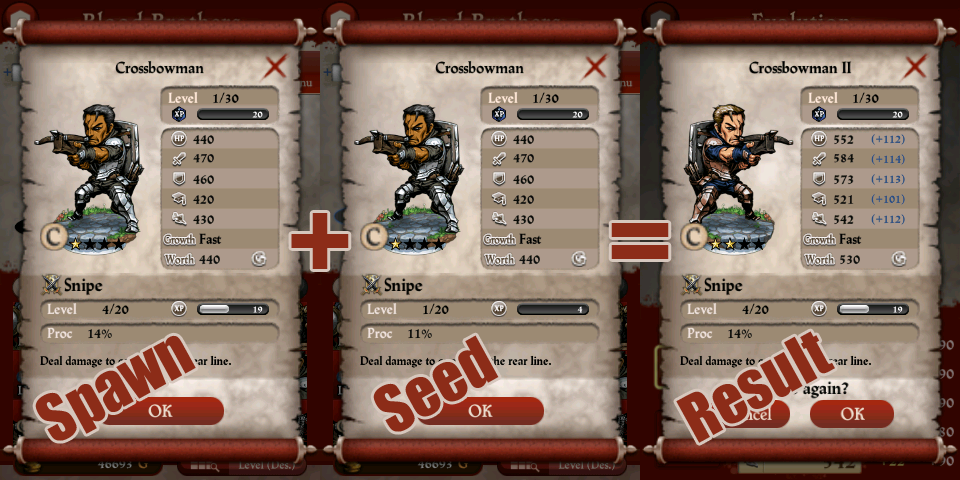
    Crossbowman Evolution, Spawn with Skill
    To illustrate the point of Skill level inheritance, take a look at this Crossbowman.
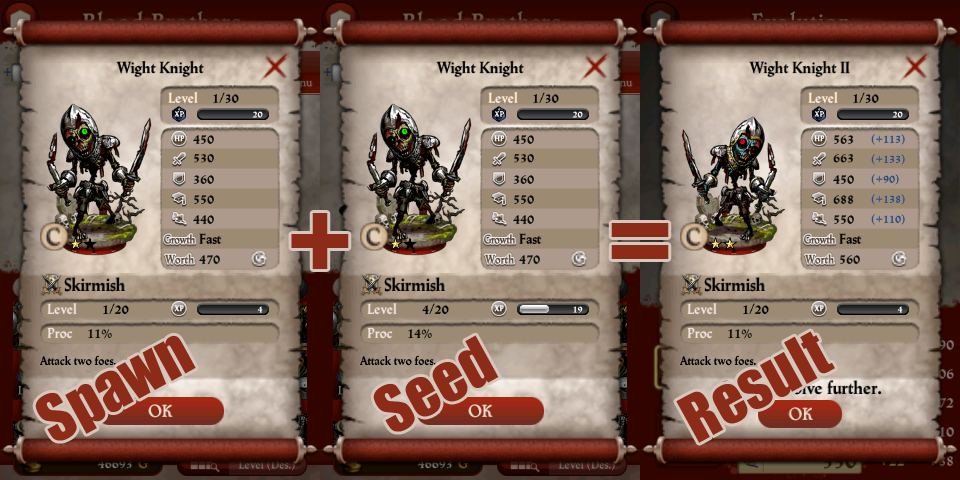
    Wight Knight Evolution, Skilled Seed.
    To further illustrate Skill Level inheritance the more skilled Wight Knight was placed as a seed.
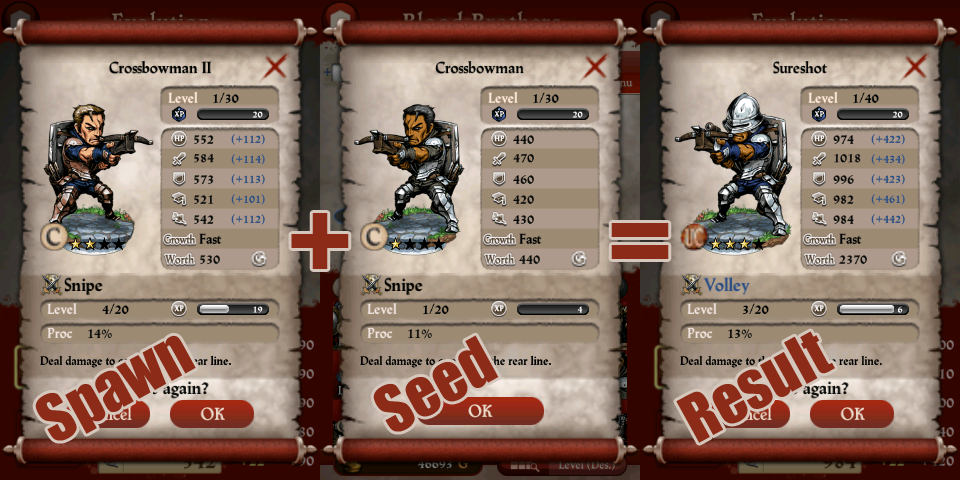
    Crossbowman II to Sureshot Evolution.
    When the Skill level changes (a result with an odd number of stars), the Skill Level experience is still inherited from the Spawn. Due to some skills costing more expereince to level, the familiars Skill Level may change.
    Both the Spawn and Seed can be at Max Lvl before evolving them. However the Spawns level does not reset upon evolution, The Seed should be at Max Lvl for the 10% stats transfer over to the spawn on top of the base evolution increase. Any stats increased by crystals on the seed will transfer based on the full value, meaning with 10 crystals on a stat you will transfer an additional 50 points. Getting a Two Star unit as a seed is less ideal than two One Star units that have been evolved at max level. This means to get the optimal stats for a final 4 Star Unit you will require eight 1 star units of that type. Each of those have to be leveled to their max before they are used as a Seed in the evolution.

    Achieving Max Stats

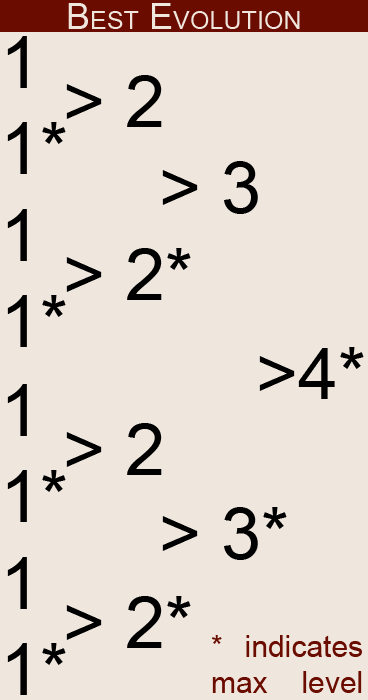
    EvolutionPath.png
    Achieving Max stats requires 8 1-star versions of the Familiar. Four of those must be leveled to Max, and then used as the Seed for the other Four. Two of the Resulting 2-Star Familiars should then be leveled to Max (This will give max Stats for the 2-Star version), and then used as Seed for the two others. One of the resulting 3-Star Familiars should be leveled to max (yielding the 3-Star Max Stats), and used as the Seed for the other. The resulting 4-Star Familiar - when leveled completely will have Max Stats.
    The stats reached using the method above should be the ones used on the Familiar pages.

    For an added boost to your Familiars, use crystals as you see fit - If you have enough, put 10 of each crystal into each Seed familiar! (NOTE: This will only net you about 165 extra stat points more than just adding your crystals to the finished product, and will cost you 70 extra crystals per stat! Additionally, if one uses only 40 of each crystal on the proper familiars the final stats are only off from a perfect familiar by 15 in each stat. Please do not include Crystal enhanced stats on a Familiar page.

    Web Development for Android / iPhone Devices: Mobile Joomla!


    While many developers are actively working on an Android app for their client or business, others are going the web app route by creating websites that look and act like apps when viewed on mobile clients. If you're already using the Joomla! CMS, the Mobile Joomla extension will do most of the work for you, as we will show you in this tutorial.
    Mobile Joomla is a free extension that works like this: if you visit a Mobile Joomla-ready website using your desktop web browser, you will see the site like you always do--a normal, standard Joomla! site. If, however, you are using an Android or WAP device, iPhone or iPad, you will see the same website appropriately displayed for your device. It allows you to redirect mobile users to a specific subdomain, or it can use a specific theme for each device. That allows Android users to see one thing, iPhone users another, and Windows Phone 7 users to see something altogether.
    You can see it in action by checking out my own test site which I created as I wrote this article,AndroidWho. View it in as many devices as you have access to, and you will see an immediate difference (or, if you are using an Android device running the Dolphin HD browser, you can change the user agent to Android, Desktop, iPhone or iPad, and check it out that way).

    Setting Up My Test Site: AndroidWho.com

    For this tutorial, I created a site from scratch. I bought the domain name AndroidWho.com, and set it up with my webhost, 1and1.com. Once I had pointed the DNS records to 1and1.com, and created a home directory for the new domain, I created a new MySQL database to use with a fresh Joomla! 1.6 installation.
    I won't bore you with the Joomla! installation details, as we have already covered the topic in detail here on HTMLGoodies. Suffice it to say, once you have created the MySQL database, it's pretty much plug and play (or fill in the blanks, more precisely). Here's what my fresh Joomla! installation looked like when it was installed on my host (and yes, I did install the sample data that's included):
    Fresh Joomla Install
    Since I am not the type of person who can just leave things in their default status, I looked around and found a Joomla! theme that looked more like something an Android nut like myself would like. It's called Modern Design and was available for both Joomla! 1.5 and 1.6, so I was set.
    Again, we have already discussed how to install a Joomla! theme, so I won't go over the details, but once I was done installing the theme (and assigning modules to positions within that theme, etc.), the site looked a bit better:
    Modern Joomla
    Now we get to the installation of Mobile Joomla itself. Mobile Joomla is free to download, and the Mobile Joomla website includes ample documentation:
    Modern Joomla
    As I mentioned before, I installed Joomla! 1.6, rather than the 1.7 release candidate, because the folks at Mobile Joomla are still working out the issues of upgrading to support the new Joomla! release. They have their own release candidate coming out with support for 1.7, but we'll leave that for a future article.

    Mobile Joomla Installation

    Before you begin the installation, make sure that your webhost has the following features or configurations:
    • PHP 5.0 (but you need PHP 5.2.4 or higher to run Joomla! 1.6)
    • MySQL 5.0
    • Joomla! 1.5 or 1.6
    • GD2, a PHP image library for image scaling
    • Zip PHP extension
    • bzip2 (PHP bz extension for TeraWURFL device database, explained below)
    • mysqli (also for TeraWURFL)
    • 100 MB of database disk space
    • at least a 64 MB PHP memory limit
    Also, one part of Mobile Joomla, TeraWURFL, takes up around 25Mb in the MySQL database, so you'll need enough space for it to be installed. TeraWURFL is where the information (the user agent data from just about every mobile device out there) is stored, and it's required for Mobile Joomla to function.
    While Mobile Joomla works on most web hosts, GoDaddy is known to have issues, so be forewarned. Now, let's begin.
    Once you've downloaded the Mobile Joomla file itself, you just need to un-compress it (the actual file you'll be using is a .tar file), and Joomla! enables you to simply upload it as is by using the Extension Manager, as shown here:
    Extension Installation
    Once it's installed, you can either leave it as it is, or further customize it. Here's how that same page we showed you above appears now when viewed by someone using an iPhone:
    iPhone View
    And here it is on a WAP device, such as a Nokia 6630:
    WAP View
    Here's what it looks like on a 7 inch Android tablet, through the default browser:
    Android View

    Changing the Mobile Joomla Configuration

    To really dig into the Mobile Joomla settings, just to to the Joomla! Administration page, Components, Mobile Joomla!, Settings, as shown below:
    Mobile Joomla Settings
    Once you're in the Mobile Joomla! settings, you will see an interface with 5 tabs: Global settings, Smartphone (XHTML), iPhone, WAP and iMode. On the General settings tab, you can enable or disable caching, browser caching, and subdomain support (you can point each type of mobile device to a device specific subdomain, such as iphone.androidwho.com). On the iPhone tab, you can choose to select iPad support, image scaling, and the modules that are used for the iPhone display. You can see the iPhone tab below:
    iPhone Settings
    There are too many options to list in this article, but suffice it to say, you can style the display for each device however you want, and completely customize your website's appearance by changing the settings. By default it works very, very well, and I am looking forward to seeing the next version of Mobile Joomla!, as it promises to support the Joomla! 1.7, with updated mobile functionality.

    2012年10月23日 星期二

    Skip SIM card activation for iOS 5.0 - 5.1.1

    You are able to skip the SIM card activation without the SIM card now. :)

    1. Press home button
    2. Press emergency call
    3. Call 112
    4. Press power button and then cancel it
    5. There is a calling bar at the top
    6. Tap it and skip the SIM card activation

    DONE!

    2012年7月6日 星期五

    DragonVale 遊戲攻略 - iOS Game


    五種基本的龍可在商店購買,一般混種龍有一定的組合模式可以配出 (請參考下面列表)
    例如 Plant+Fire 能生出 Flower 或 Poison 但這是隨機,沒辦法指定要生哪隻

    兩隻單屬性的龍如果屬性 "相剋" 就無法進行合成,所以若要合成其中一隻必須是雙屬性龍
    部分網友認為合成機率和擺放位置有關,多次測試下來我認為是無關的!純屬 (運氣) 問題

    龍的等級目前已開放到20級,高等級的龍,對於罕見龍成功機率會比較大嗎?
    目前我的龍都未滿15級,所以這部分我就不清楚了,需要大家一起去測試


    限定類的龍:
    在時間結官方移除後,若有兩隻一樣的龍,一樣能自配
    例如:Reindeer + Reindeer = Reindeer
    寶石類的龍:無法交配!就算有兩隻一樣的也無法自配

    以下表格為Hybrid(混種)的配種公式 
    屬性Plant Earth Fire Cold Lightning Water Air Metal
    PlantPlant Tree/
    Moss 
    Flower/
    Poison 
    Lichen Cactus Seaweed/
    Swamp
    Willow 
    EarthTree/
    Moss
    Earth LavaMountainQuake/
    Crystal 
    MudSandstormIron
    Fire Poison/
    Flower 
    Lava FireBlue FireFirefly/
    Scorch
    AirBlazingBrass
    Cold  LichenMountain Blue FireColdStormIceSnowMine
    Lightning Cactus Quake/
    Crystal 
    Firefly/
    Scorch
    StormLightning  SonicMagentic
    WaterSwamp/
    Seaweed 
    MudAirIce WaterFogRust
    AirWillowSandstormBlazingSnowSonicFogAirChrome
    Metal IronBrassMineMagenticRustChromeMetal

    以下配種資料是綜合我自己、網友、國外玩家的配種方式,僅供參考!
    Rainbow (48小時) 下面的建議組合是指,若沒出彩虹,最長等待時間只需8小時罕見龍類如 Moon、Sun、Rainbow 這三種並沒有固定的配法,牠們純屬「運氣」
    有人4.5次便成功,也有人一直配不出來,只能看個人運氣
    畢竟牠們都屬於最終的龍王,所以請玩家們多點耐心吧,總有一天會配到的
    Poison + Snow
    Willow + Blue Fire
    Love + Air
    Sonic + Flower
    Current + Blazing
    Rainbow + Rainbow = Rainbow
    Rainbow + Leap Year = Rainbow
    Moon & Sun (48小時)上午 7:00 到下午 6:59 配出太陽的機率較高下午 7:00 到上午 6:59 配出月亮的機率較高 (感謝網友飄飄提供)
    Plant + Storm
    Fire + Storm
    Cold + Scorch
    Storm + Lightning 
    Blue Fire (12小時) 1.1.1 新增
    Fire + Reindeer
    Fire + Snow
    Fire + Storm
    Fire + Ice 
    Sandstorm (2小時) 1.1.2
    Air + Clover
    Air + Quake
    Air + Mud
    Air + Mountain
    Bone (10小時) 1.1.2 萬聖節限定
    Reindeer (5小時) 1.3.0 聖誕節限定
    Frostfire (12小時) 1.4.0 第二部分新增 / 2012.1.14
    Cold + Lava
    Cold + Firefly
    Cold + Scorch
    Cold + Fire
    Firefly + Cold
    Blue Fire + Firefly
    Frostfire + Blue Fire 
    Iceberg (8小時) 1.4.0 第二部分新增 / 2012.1.14
    Water + Cold
    Water + Ice
    Ice + Water
    Firefly + Ice
    Panlong (36小時) 1.4.0 第三部分新增 / 2012.1.20 中國新年限定
    Blazing + Mud
    Mud + Blazing
    Fog + Lava
    Air + Blue Fire
    Love + Panlong
    Love (5小時) 1.5.0 第二部分新增 / 2012.2 情人節限定
    Leap Year (14小時30分) 1.6.0 第二部分新增 / 2012.2.27 閏年限定
    Clover (7小時) 1.6.0 第三部分新增 / 2012.3.3 聖派翠克日 St. Patrick's Day
    Bloom (13小時) 1.7.0 第三部分新增 / 2012.4.3 復活節限定
    Dodo (16小時) 1.7.0 第五部分新增 / 2012.4.14
    Chrome + Earth
    Earth + Fog
    Earth + Willow
    Steel Dragon (14小時) 1.7.0 第五部分新增 / 2012.4.14
    Storm + Metal
    Mine + Cold
    Cold + Metal
    Blue Fire + Magentic
    Sakura Dragon (10小時) 1.7.0 第六部分新增 / 2012.4.19
    Butterfly Dragon (12小時) 1.7.0 第九部分新增 / 2012.5.9
    Plasma Dragon (16小時) 1.7.0 第九部分新增 / 2012.5.9
    Water + Magnetic
    Storm + Water
    Lightning + Rust
    Lightning + Seaweed
    Lightning + Swamp
    Current Dragon (16小時) 1.7.0 第九部分新增 / 2012.5.9
    Water + Magnetic
    Storm + Water
    Sonic + Water
    Iceberg + Lighting
    Emerald Dragon 翡翠 (31小時) 1.8.0 第一部分新增 / 2012.5.17
    Pearl Dragon 珍珠 (30小時) 1.8.0 第四部分新增 / 2012.6.1
    Forge Dragon (24小時) 1.8.0 第四部分新增 / 2012.6.1
    Metal + Fire
    Scorch + Metal 
    Quicksilver Dragon (18小時) 1.8.0 第六部分新增 / 2012.6.8
    Metal + Water
    Solstice Dragon (23小時30分) 1.8.0 第八部分新增 / 2012.6.13 
    Firework Dragon (6小時) 1.8.0 第十一部分新增 / 2012.6.27
    Fire + Air
    Forge + Air
    Chrome + Scorch 
    Evergreen Dragon (10小時) 1.8.0 第十一部分新增 / 2012.6.27
    Plant + Cold
    Ice + Poison
    plant + snow
    Snow + Seaweed
    Crystal + Lichen
    Ryby Dragon 紅寶石 (31小時) 1.8.0 第十二部分新增 / 2012.7.1
    Chrome + Scorch